显示标签为“Mb Star C4 Diagnostic”的博文。显示所有博文

2021年12月1日星期三

How to solved Mercedes Star Diagnostic Xentry Das License Key is Corrupted


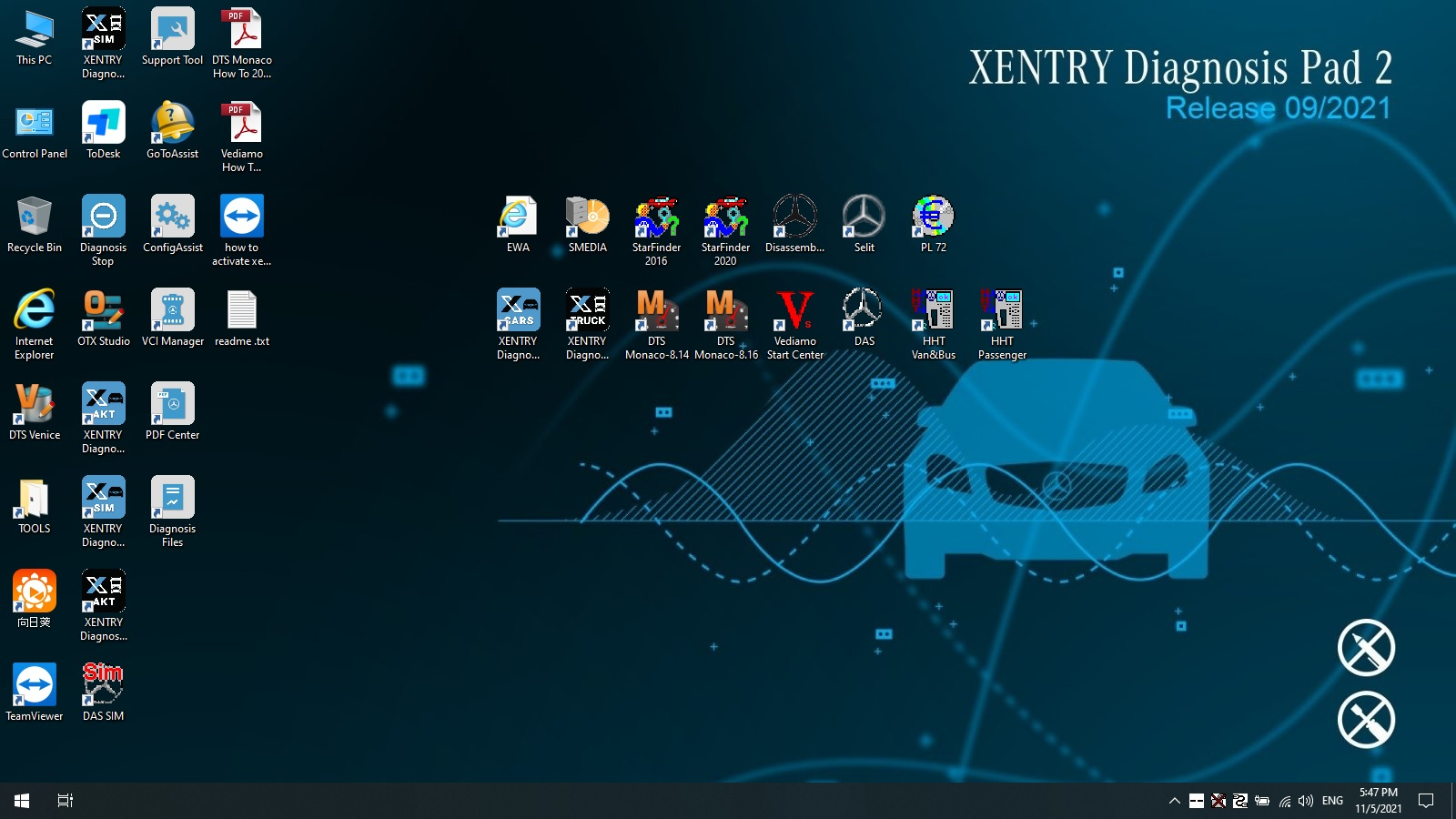
MB Star Diagnosis Software update to 2021.09 MB Star C4 SDConnect xentry software. Mercedes Star Diagnosis Software have Das license key is corrupted met by customer who order 2021.07 xentry diagnostic software. CnAutotool.com sharing Mercedes Star diagnosis Xentry Das license key is corrupted solution as following.
2021.09 Mercedes Star Diagnosis Software Xentry DAS Software for MB SD Connect C4/C5
solved Mercedes Star Diagnostic-1
Hello,
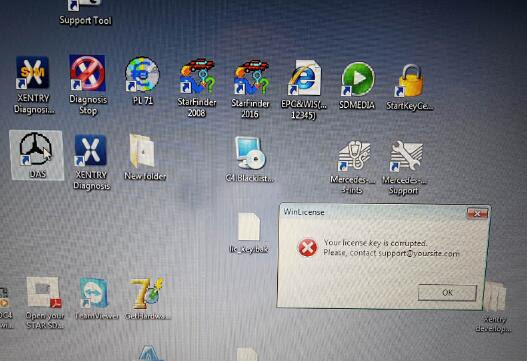
I got 07.2021 Xentry DAS Windows 7 software HDD is giving me the following massage:
winLicense
your license key is corrupted
please contact support@…
How to solved it? Any help can offer?
solved Mercedes Star Diagnostic-2
Best Regards
Technician have been check the error, this is DAS need activation.
Mercedes Benz Diagnostic Software Xentry Das license key is corrupted solution:
Xentry/DAS activation:
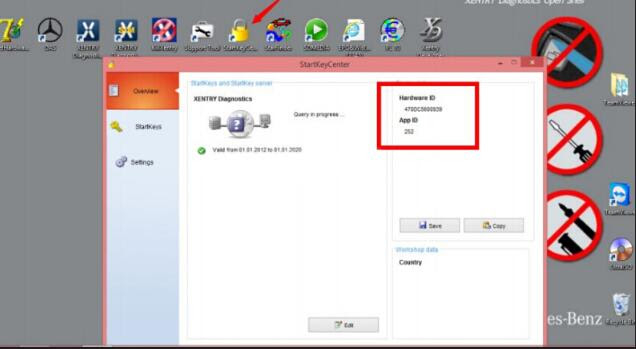
Step 1: Run StartKeyCenter to get ID for activation
Open “StartKeyCenter” on Desktop, to get the SD connect c4 Hardware ID and App ID
solved Mercedes Star Diagnostic-3
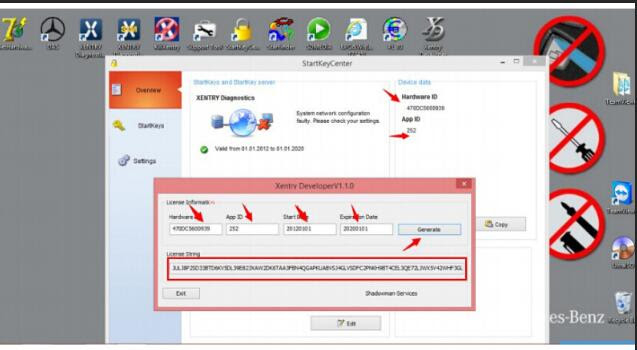
Complete Licence information (Hardware ID, App ID, StartDay, ExpirationDay), then click “Generate” to get License String
solved Mercedes Star Diagnostic-4
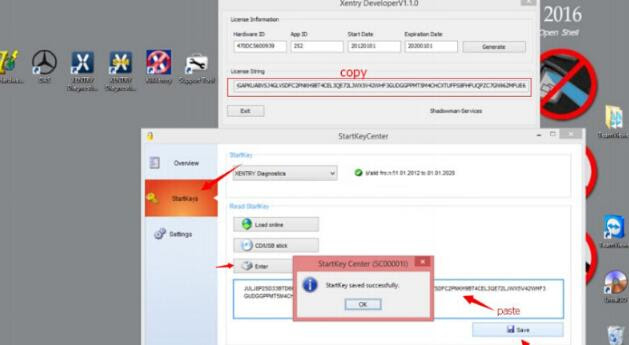
Copy License String, then go to “StartKeys”, click “Enter” to read StartKey, then “Save” data
solved Mercedes Star Diagnostic-5
Step 2: Reactivate Xentry/DAS
Go to Local Disk C:/ ProgramData/ LicDir, the copy and paste “lic_key_2.dat”, re-name as “lic-key_2.x4711”
Xentry Your License key is corrupted 5 Mercedes Star Diagnostic Xentry Das License Key is Corrupted Solution
Setup Properties of “lic-key_2.x4711”, select Read-only
Then open XENTRY Diagnostics Openshell and close it
(NOTE: this avoids the activation code to be lost and reactivate XENTRY)
More question about Mercedes benz star diagnostic tool mb star c4 sd connect Xentry diagnostic software just keep your order number to contact us freely with sale@cnautotool.com .
2021年2月18日星期四

How to Install batteries into the SD Connect C4 multiplexer


Mercedes SD Connect C4. Install the batteries.

It is recommended to operate the Mercedes SD Connect C4 with established internal batteries. Size AA Ni-Cd 1.2 V. the recommended capacity of 2400 — 2800 mA/h.

The need for internal batteries is caused by:

firstly that the multiplexer SD Connect which was fully independent of the computer, running the Linux operating system, “gross” power-off that occurs when unpulling the diagnostic cable from the vehicle and then loading up the device when you reconnect to the car it is not advisable, and in some cases, may lead to breakage of the multiplexer
second, in the absence of internal batteries, at the time of engine start in a vehicle voltage of the vehicle, and hence in the power supply circuit of the multiplexer appearsudden voltage power supply that can cause loss of connection between the multiplexer and PC, and in some cases, may lead to breakage of the multiplexer
The presence in the SD Connect battery allows you to keep it in working condition as if disconnected from the vehicle at the time of the sagging of the supply voltage and eliminates the need to re-download the next time you connect to the diagnostic connector.

In mode, the power only from internal battery (disconnected from the diagnostic connector), it is possible to switch the multiplexer into “sleep mode”, which is not possible with power from the car. A complete shutdown of the device is not provided. It possible by taking out the batteries or changing the power diagram (see video).

Without changes in power diagram, long-term, without the use, storage multiplexer, batteries should be removed, as in sleep mode, the standby quiescent current is 10-60 mA with periodic jumps up to 190 mA. With the recommended battery capacity is 2400 mA/h, and provided that they are 100% pre-charge ensure retention sleep mode in only 3 to 7 days. Further, the voltage of the battery falls below critical, which negatively affects their service life.

Before removing the batteries, switch the multiplexer in STANDBY/SHUT DOWN. At the time of connection to the vehicle connector, the instrument automatically exits sleep mode and begins charging the internal batteries.

Capacity of used batteries in mercedes star diagnostic must be at least 2000 mAh.

The message on the display “insert the battery” or “check battery” may indicate a capacity loss of one or more batteries or a bad contact in the circuit of the batteries. The increase in the total internal resistance of the battery module by more than 1 Ohm is causing the message about not working properly or the lack of batteries.


MB SD Connect Compact 4 Star Diagnosis Tool Plus Dell D630 Laptop With Vediamo and DTS Engineering Software


2-1


2020年9月28日星期一

How to solve MB SD C4 Insert Batteryi and Initialization Failed


Mercedes Benz MB SD Connect Compact 4 MB Star diagnostic system “Please insert batteries” and“Initialization of diagnosis multiplexer failed” solution are provided.MB SD C5
Problem:
One of the Mercedes MB SD Connect C4 user has the problem when using the star C4 diagnostic system.
Error 1: Please insert batteries.

Error 2: Initialization of diagnosis multiplexer failed Possible reason: He has not got the MB SD C4 connected with Dell D630 laptop to build communication. Mercedes Benz EIS Trouble Repair Guide Solution: Check the SD Connect C4 icon on the bottom of the toolbar, power on the SDConnect and connect the diagnostic scanner with computer, if the #21 device displays in “x” status,it indicates the C4 multiplexer is not well connected or well configured,how to tell:
1.Open laptop Local Network Connection->SD C4 WLAN,disconnect then connect to check if network connection has changed. If the network remains unchanged,change another laptop and do the same setting.
2.If network status did not change on any laptops,then change a new LAN cable.If still no changes,you have to send back your SD C4 main unit for repair.


35.2

35.3


2020年9月25日星期五

MB SD Connect Compact 4 Star Diagnosis Problem Solutions


2-1
Purchase Link: https://www.cnautotool.com/category-172-b0-MB+Star+C4.html

 MB Star C4 Features:
1. New MB SD Connect Compact 4 Star Diagnosis support wireless diagnose;
2. New MB SD Connect Compact 4 Star Diagnosis not only support K line diagnose and CAN BUS,but also UDS diagnose protocol.
3. Multiplexer now use Lan cable to connect
4. Connector adopt Military quick swap technology, it can support 10,000 times pull plug, more stable;
5. All core accosseries adopt original new packing chip, and 24hours test, guarantee the quality of the products;

1. About computer system requirement

Q: Blue screen after insert SD C4 Dell D60 hard disk into the computer and open it.

A: Make sure Dell D630 computer is integrated video card and with 1GB memory, because the D630 of discrete video card is easy to have blue screen or shutdown and restart, restart and shutdown.

Q: When click “Diagnostic” to find “Fingerprint ID” of MB SD C4 2019.07, got an error” Internal error (3.17) – 3.89 You must contact the user help Desk “. (Shown picture below)

A: Check whether computer is compatible with mb sd connect compact 4 star diagnosis 2019.07 software. If choose d630 hard disk, it needs to work with Dell D630 computer with integrated video card and 1GB memory; if choose movable hard disk, it’s requirement to the computer is: CPU 2.0GHZ or above, 2GB memory or more, Windows XP professional.

2. About languages available

Q: Is DAS available with 21 languages and optional to reset? Or only English available?

A: The DAS on the desktop is only English available, after enter into Xentry you are allowed to set the language you want. Just enter into Xentry whatever car models you want to diagnose, and if the car model should be diagnosed and programmed in the DAS but you enter Xentry, it will automatically switch into DAS and the DAS language will be as the same as the Xentry language.

3. About Software update

Q: MB SD C4 Connect Compact 4 Star update error: the software update was aborted. Please repeat the update process. (662)

A: do not update MB SD Connect Compact 4. You are allowed to update hardware version to 2.02, not 2.2.

At present, the lastest version software for MB STAR C4 version 2019.07 ,

Here we have HDD and SSD for choice : https://www.cnautotool.com/goods-4829 MB+SD+Connect+Compact+4+Star+Diagnosis+Tool+With+WiFi+201607+Plus+EVG7+Diagnostic+Controller+

Tablet+PC+.html

4.About activation/code

Q1: When Set up MB SD connect Compact 4 hard disk, while got a message reading “No access authorization code! Please contact the Star diagnosis call center.

A1: It needs activation, please send us Hardware fingerprint, LAN-ID and HW-ID, then we will help you active.
Our engineer can support you via teamviewer.

MB Star SD Connect C4 Wire Connection Picture

sd c4


2018年12月26日星期三

Where to buy good quality MB SD Connect C4 with laptop ?

SD Connect C4 connection problem-Das fault (1.1)-1.501.9878
The mux is connecting with diagnosis computer both by lan cable or wifi(passed and respond to all self tests).no lcd problems or blocked!The fault comes when das try to initialize the mux green led blinks about 10 second and this fault comes no matter is from das standalone or launched from xentry .

Solutions:
You must change IP address in windows : 172.29.127.12
Go into "Control Panel","Network Connection","Local Network Connection">right click>properties>choose this one with TCP/IP,select this,choose properties,choose manually ip and put this ip "172.29.127.119",mask 255.255.255.0(as you will get when type ip),rest of field,leave blank .
It was done !
Everything test well before send it out ,thanks

 For more information,please visit our website: www.cnautotool.com

2018年4月9日星期一

FAQ of MB SD C4 V2018.03


Q: Why I need reactivate for Xentry, How to solve the problem?


A:
Step1:After register successful;

Step 2:pls copy the file “lic_key_2.dat” from C:\Documents and Settings\All Users\Application Data\LicDir\lic_key_2.dat”, and then paste it to F:\xentry\bin

Step3: Right Single-click Xentry ,  and change the file from “start_xentry.exe” into “Xentry.cmd”

Q: There pop up the fault(1-2)-2 503.9901 when I test on vehicle, how to fix the trouble?

A: Pls enter the control panel<Network status and tasks<View network status and tasks<Change the adapter settings<local network connection<Attributes,
Then choose as follow option, and enter the IP address as below.


V2018.03 MB SD Connect Compact C4 Star Diagnostic TooL With Vediamo and DTS Engineering Software Support Offline Programming